Create your first editable screenshot set
Follow the real template, headline editing, save and export flow. Includes editor screenshots, a recorded walkthrough and a downloadable three-image sample.
This walkthrough uses Keep Ideas Forever from our existing template library, a visual-ideas collection layout. The recording shows the actual editor flow with an Android phone target. For an App Store set, select App Store — iPhone in the same platform menu and check the final device slot before upload.
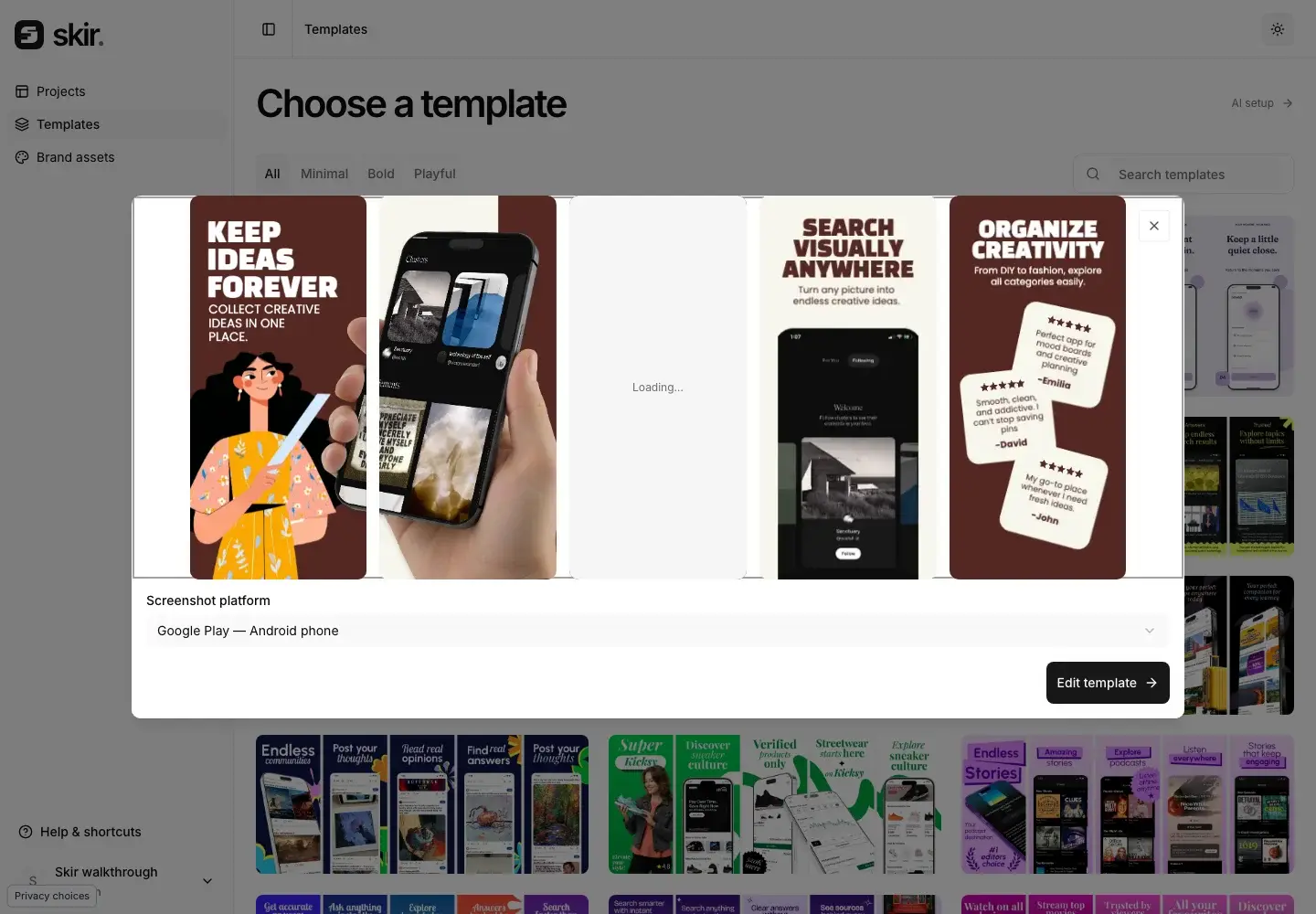
1. Choose a template and platform
Open Keep Ideas Forever from the template library. In the template dialog, choose the app for this set and set Screenshot platform. Google Play creates 1080 × 1920 Android phone boards; the App Store choice uses the template’s iPhone target. The account’s onboarding choice is a default, not a restriction.
2. Replace sample artwork and edit the headline
Choose Edit template. The sample interface is not your app: replace it with a screenshot of your release build before publishing. Keep the uploaded screen as one image; use the surrounding editable text and shapes to explain it.
To change the lead headline, open Layers, select the KEEP IDEAS FOREVER text layer and edit the Text field. In this example, “Keep ideas together” introduces the sample collection. Replace the other sample messages and artwork with your actual app content.
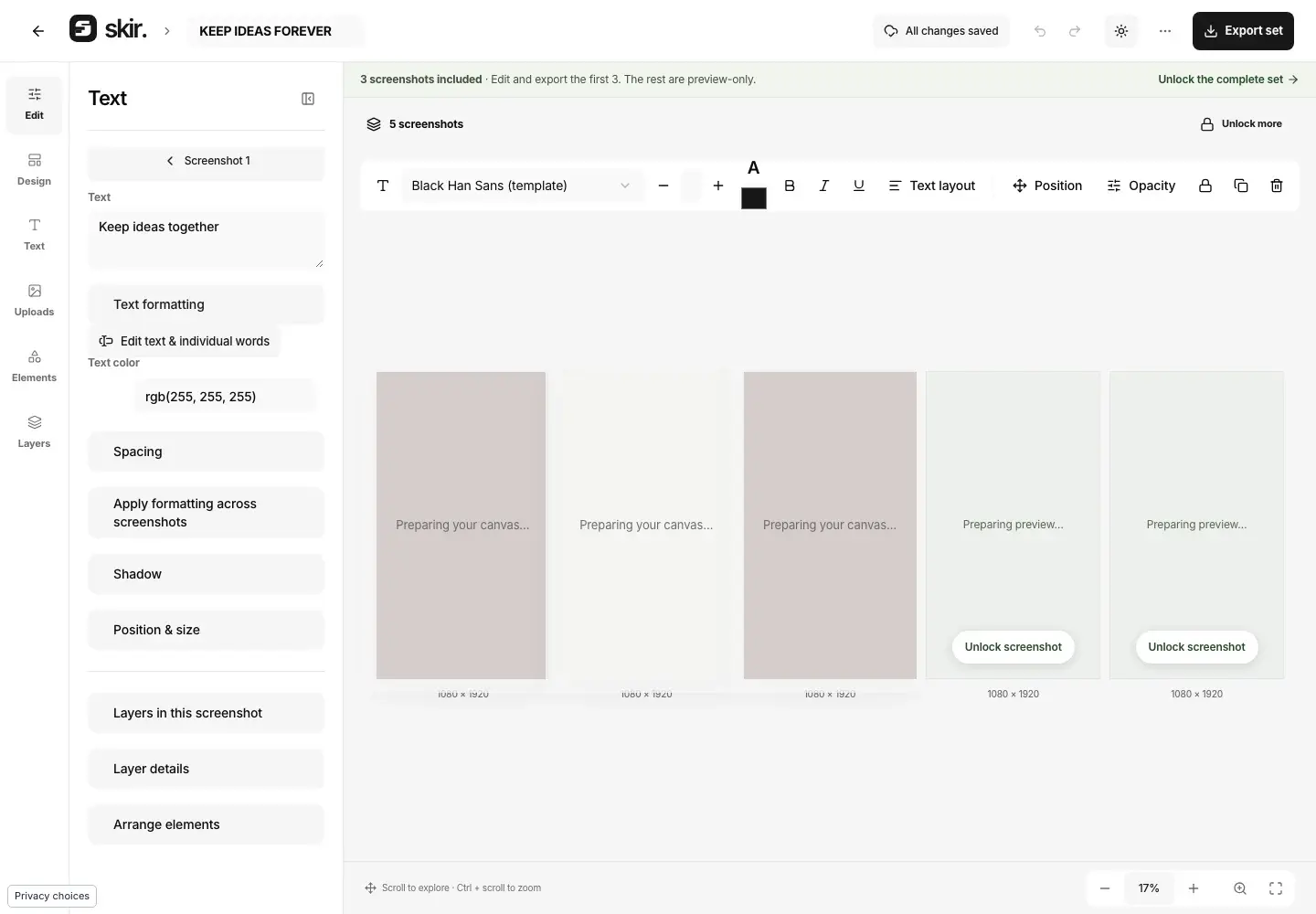
3. Save, then reopen and review
Wait for All changes saved. Reload the project and verify the edited text is still present. Review each board in sequence: the first should introduce the benefit, the next should show how it works, and later images should add different useful information. Zoom in to inspect line breaks and the app screen.
4. Export the available screenshots
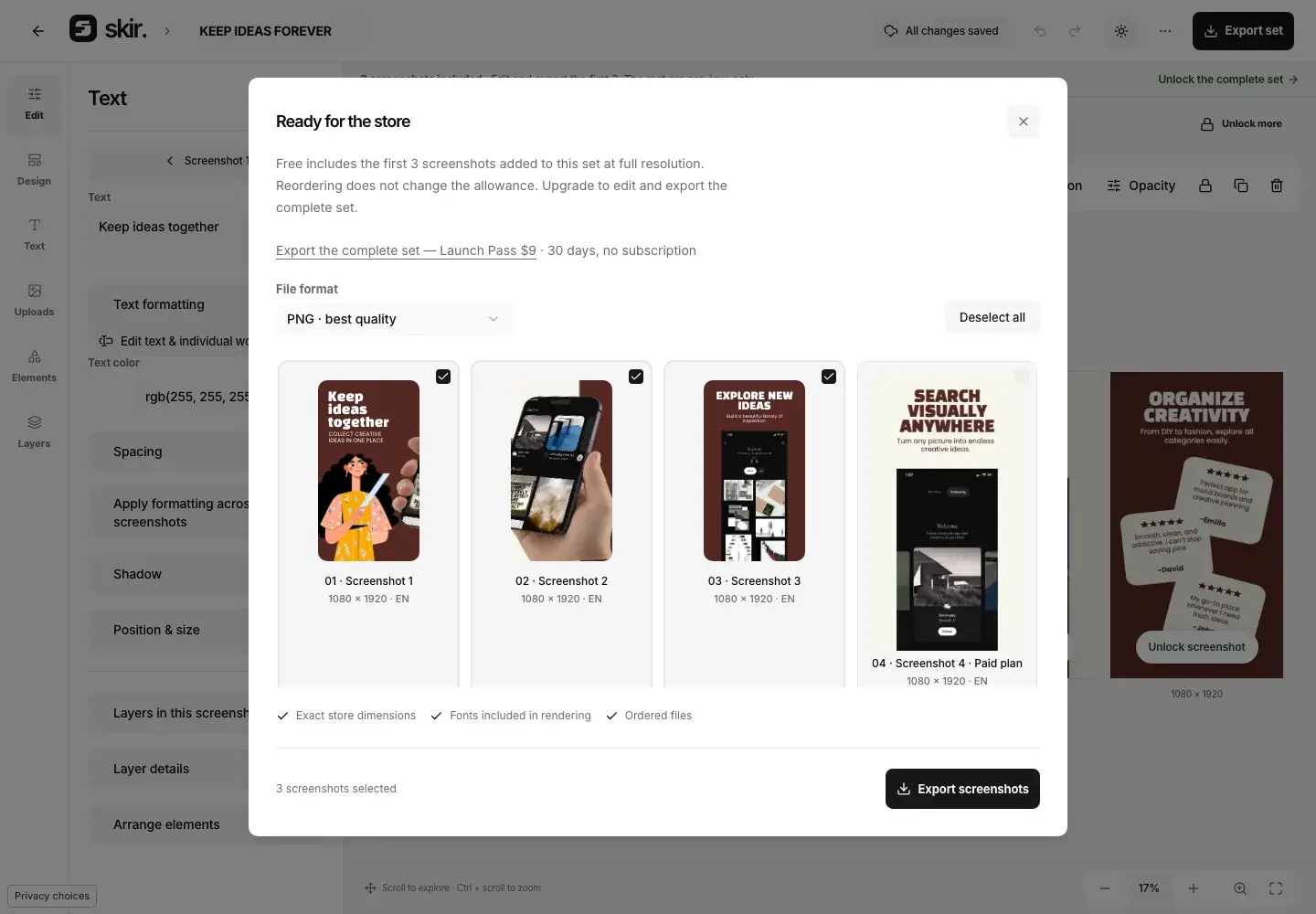
Select Export set. Free makes the first three screenshots available; additional boards show their access requirement. Choose PNG or JPEG, select Export screenshots and wait for processing to finish. Download screenshot set saves a ZIP through the browser.
Watch the recorded workflow
The recording has no spoken audio. The steps above provide its text transcript: choose the Android platform, open the template, edit the headline, reload to verify saving, open Export set, export the first three screenshots, and download the ZIP. Recorded September 10, 2026.
5. Inspect the exported files
Unzip the download and open every image. The three images in this example are 1080 × 1920 PNGs without an alpha channel. Run the files through the local checker and compare them with the correct Google Play or App Store upload requirements. The illustrative app content must still be replaced before a real submission.
Download the illustrative three-image example. For retries and large ZIPs, see exporting screenshot sets.